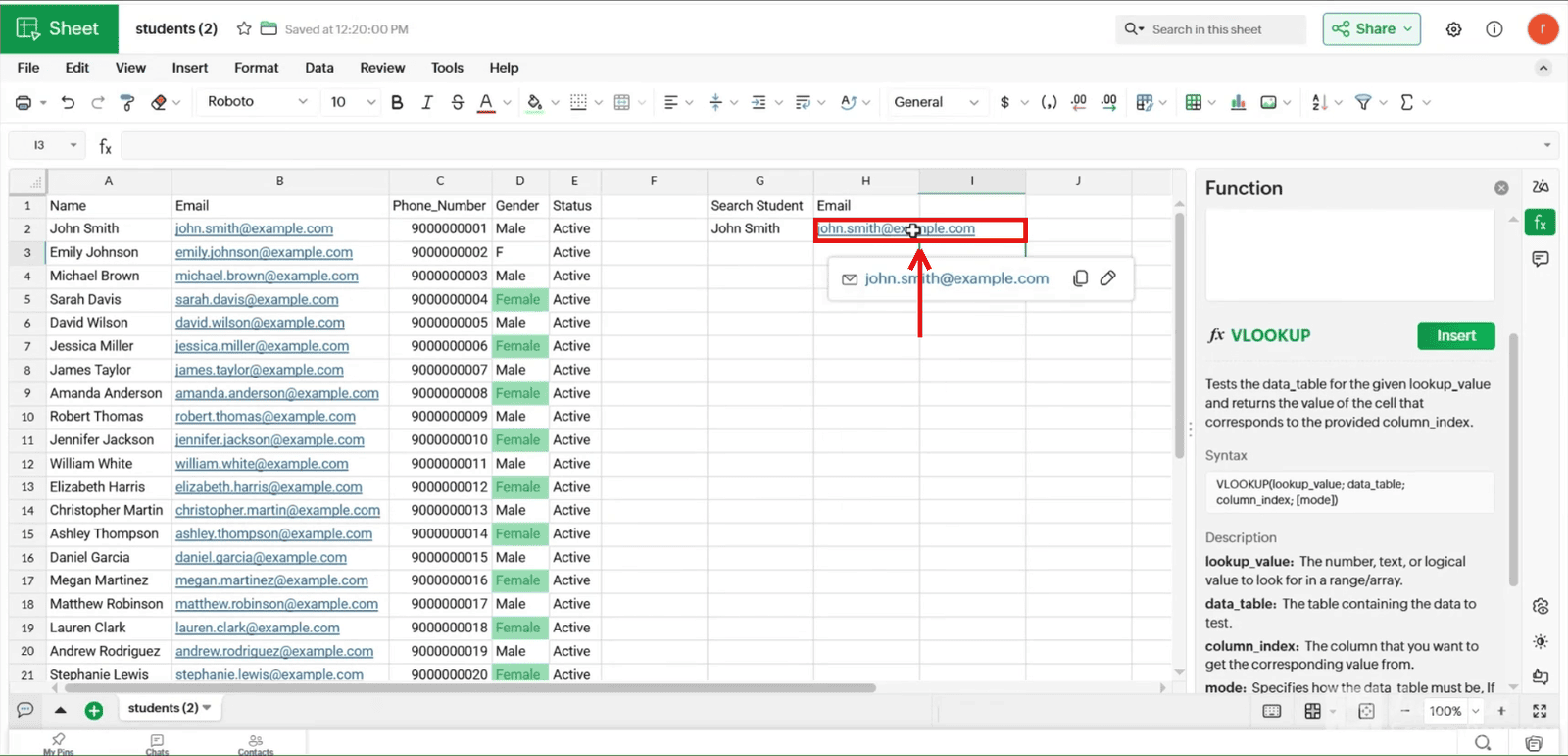
Create And Configure V-Lookup
Here is our approach for creating Vlookup in Zoho Sheet in a simple way.
Even a non-technical person can easily set it up in just a few steps.

Approach
We can create andconfigure Vlookup in Zoho Sheet using the following steps.
1. Open your spreadsheet and set up your lookup area
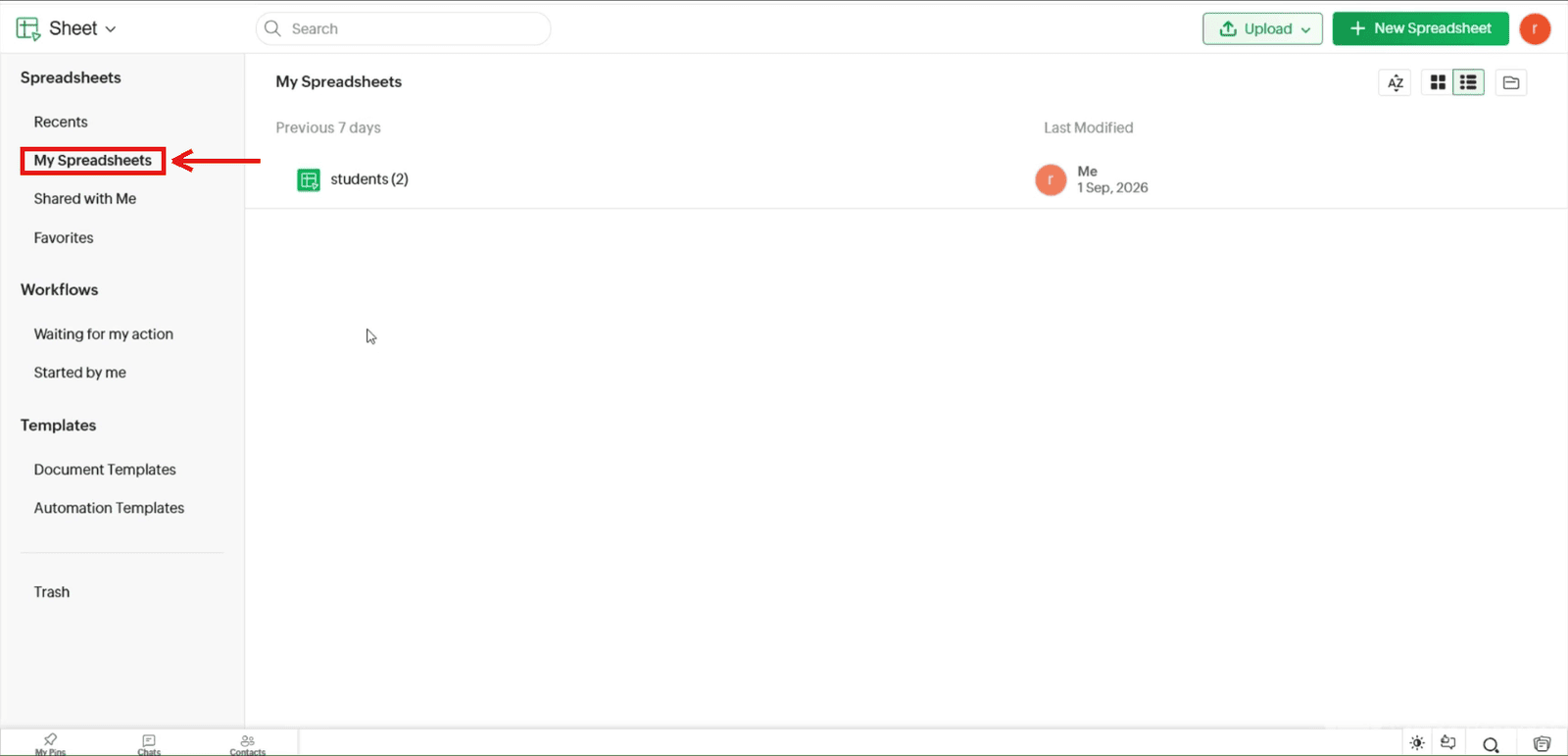
1.1 Go to Zoho Sheet → My Spreadsheets and open the file
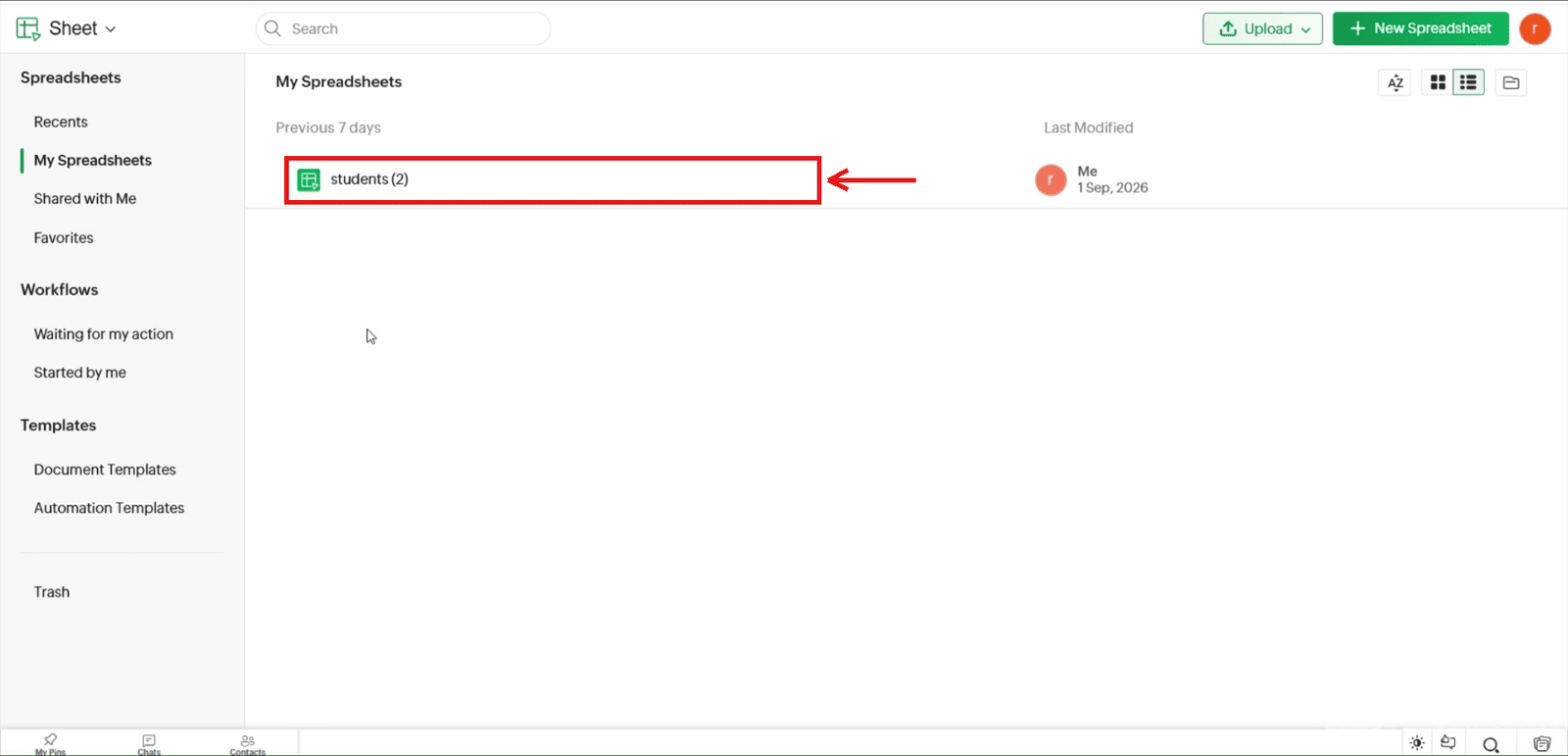
1.2 Open the file that has your data.
2. Select the result cell
2.1 Click the empty cell where you want the result to appear
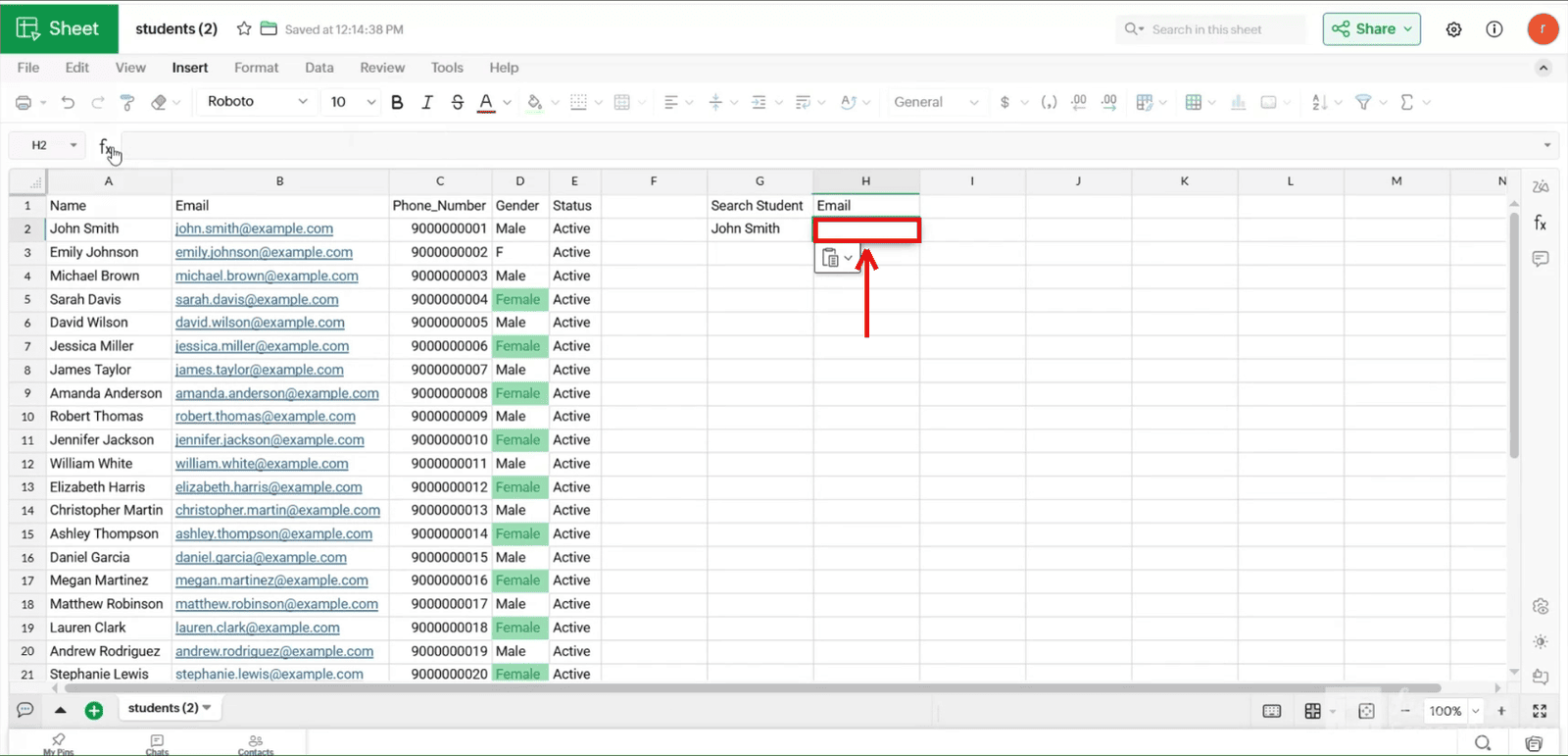
2.2 Click the fx icon next to the formula bar. The Function panel opens on the right.
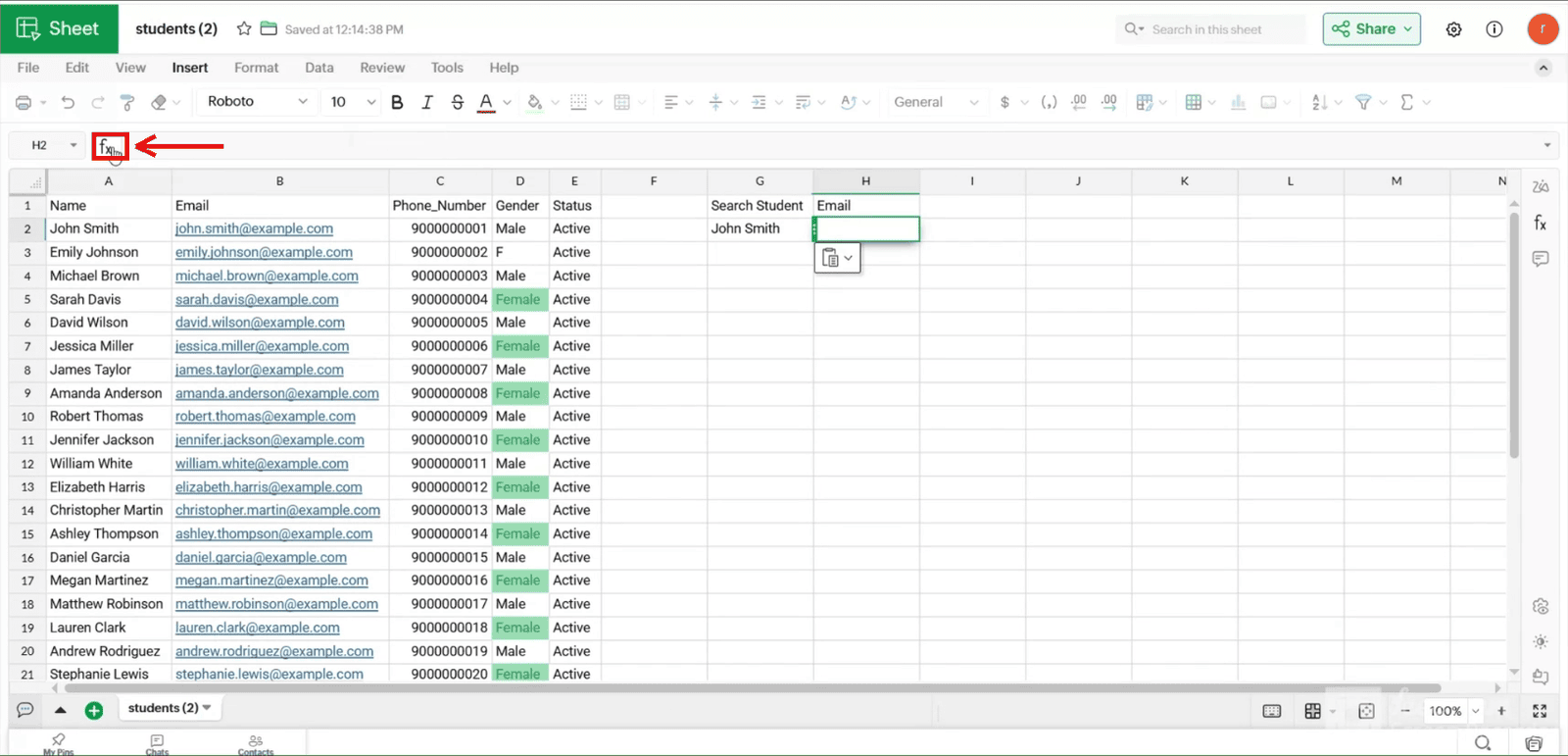
3. Insert the VLOOKUP function
3.1 In the Function panel’s search box, type “VLOOKUP”.
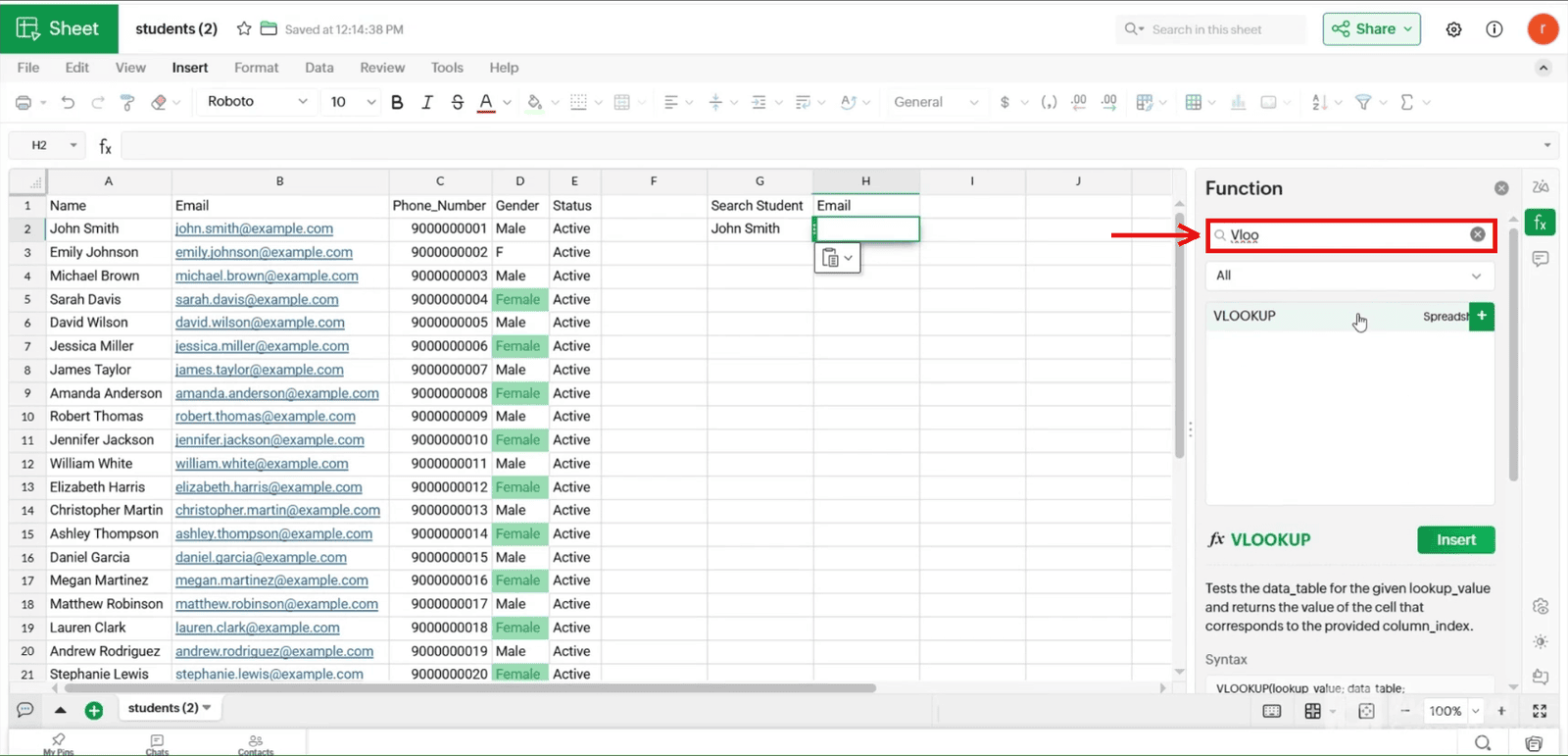
3.2 Click VLOOKUP in the list.
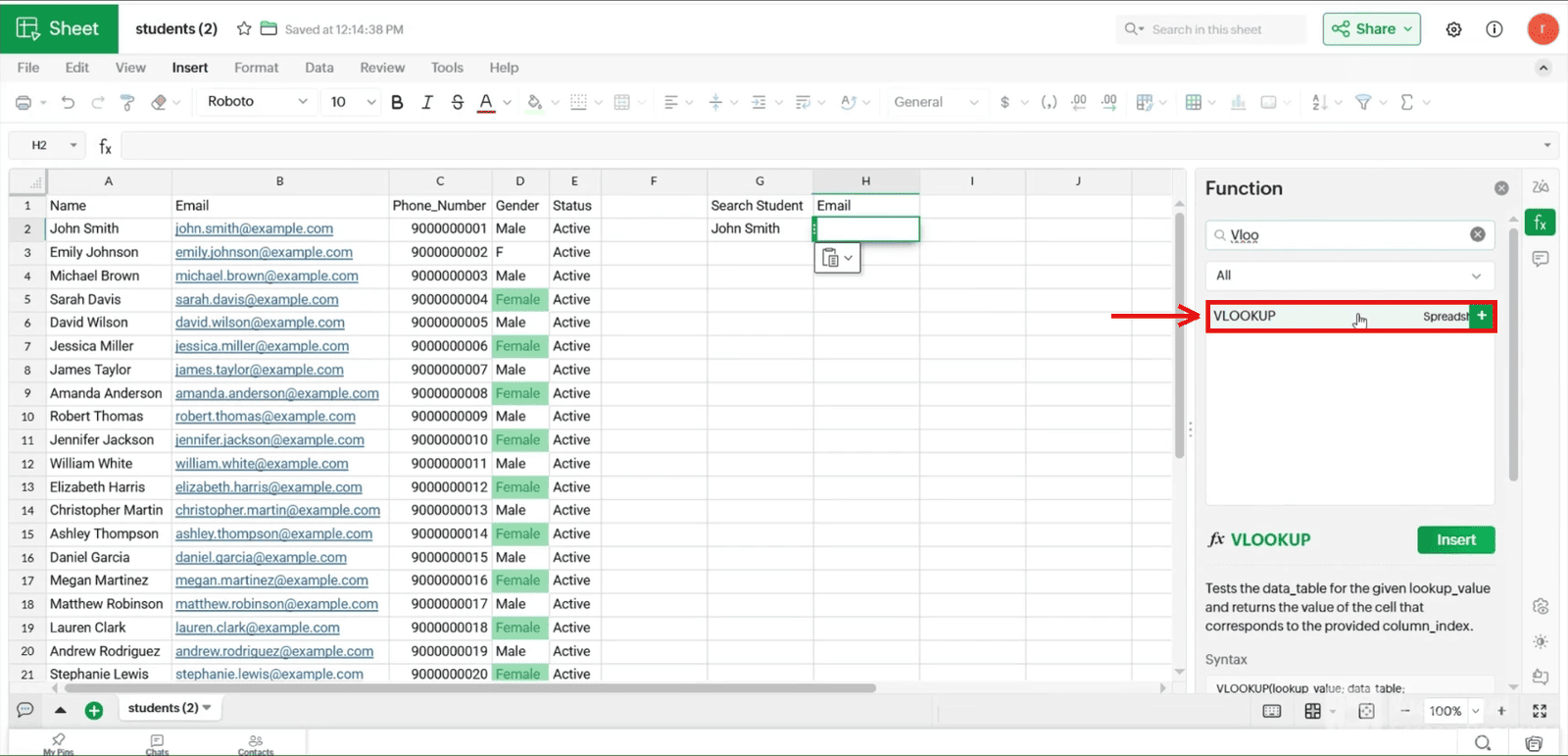
3.3 Click + or Insert. The cell now shows =VLOOKUP()
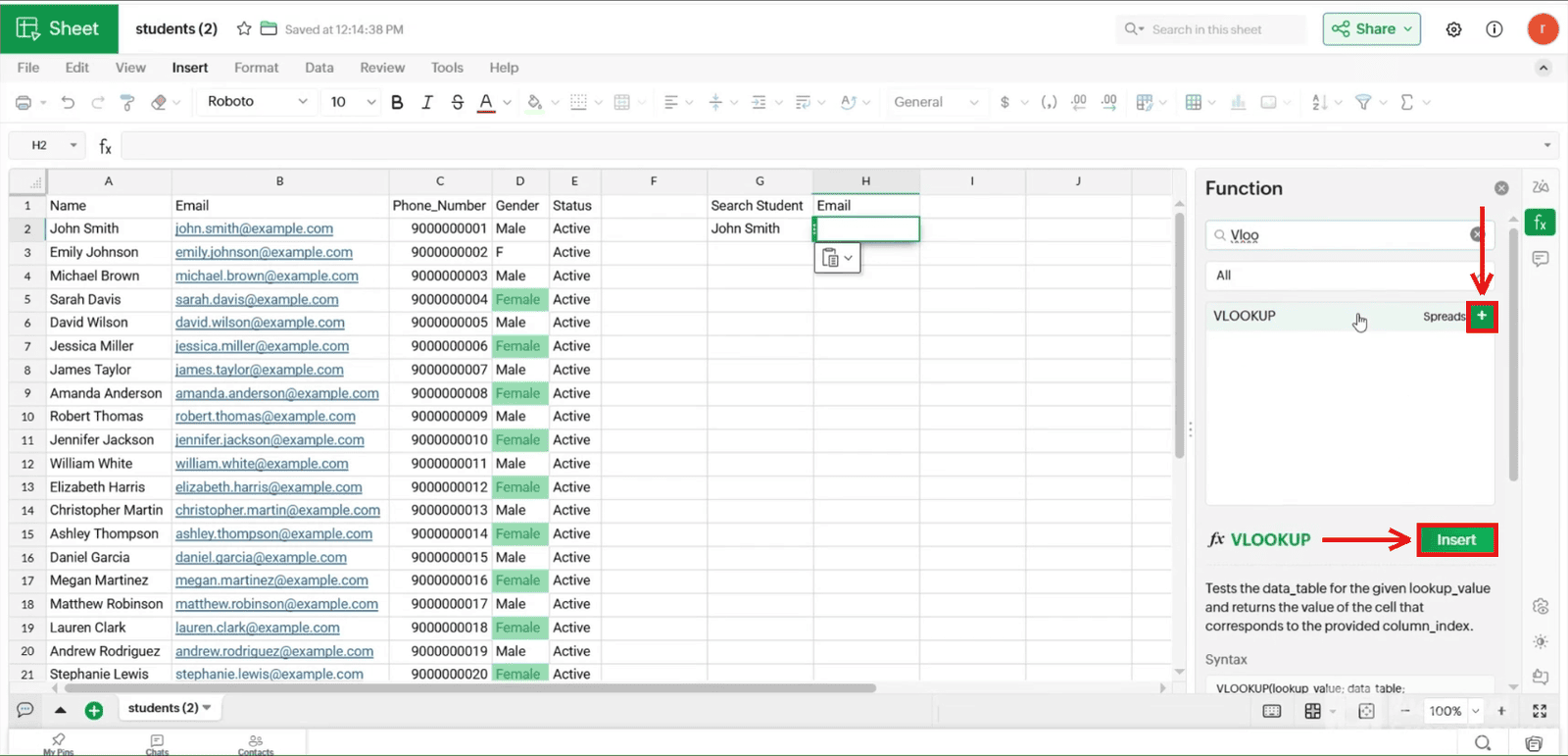
4. Select the lookup value
4.1 Click the cell that holds the value you want to find (for example, a name).
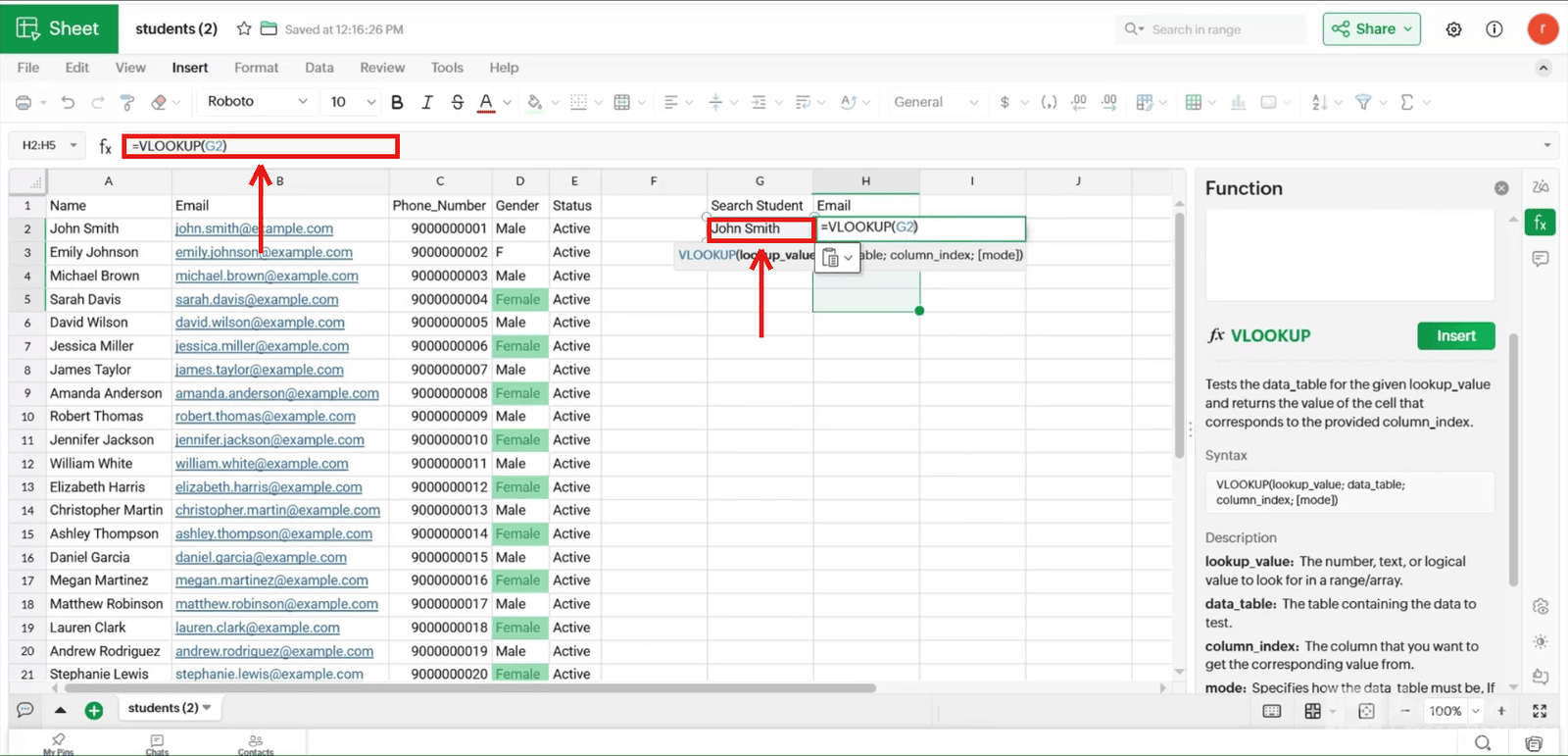
4.2 Type ; to move to the next argument.
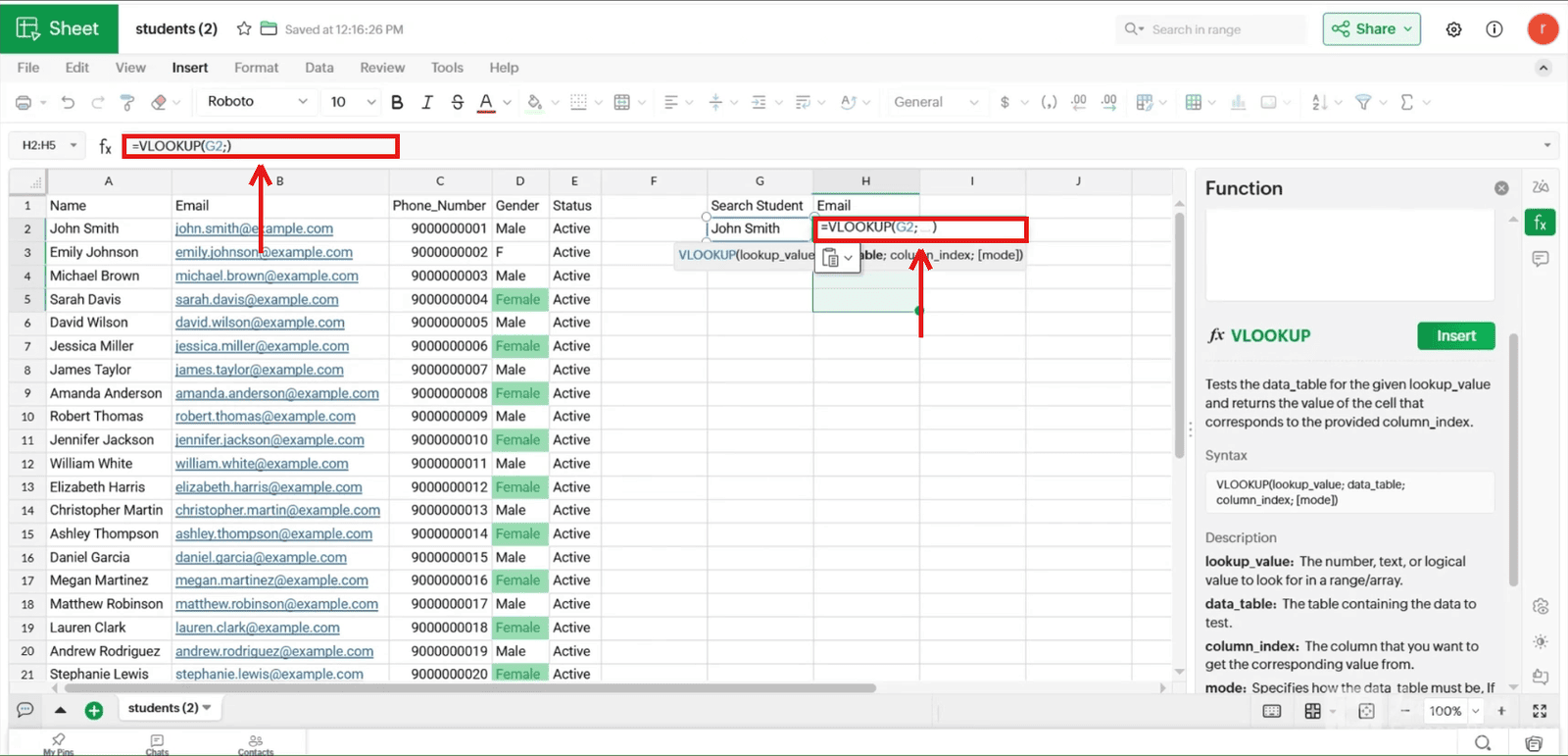
5. Select the data table
5.1 Drag across your dataset, for example A2 to E21.
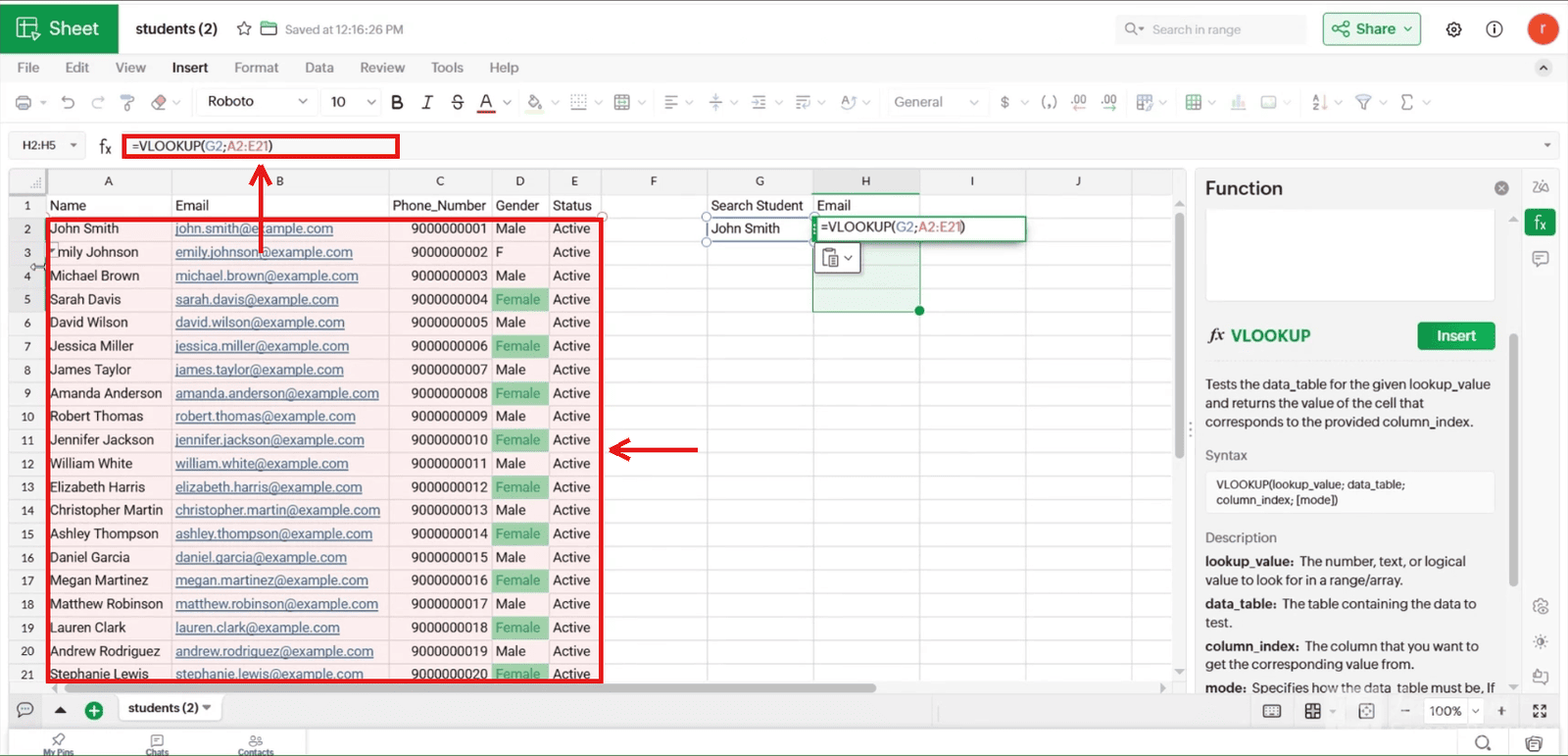
5.2 Type ; to move to the next argument.
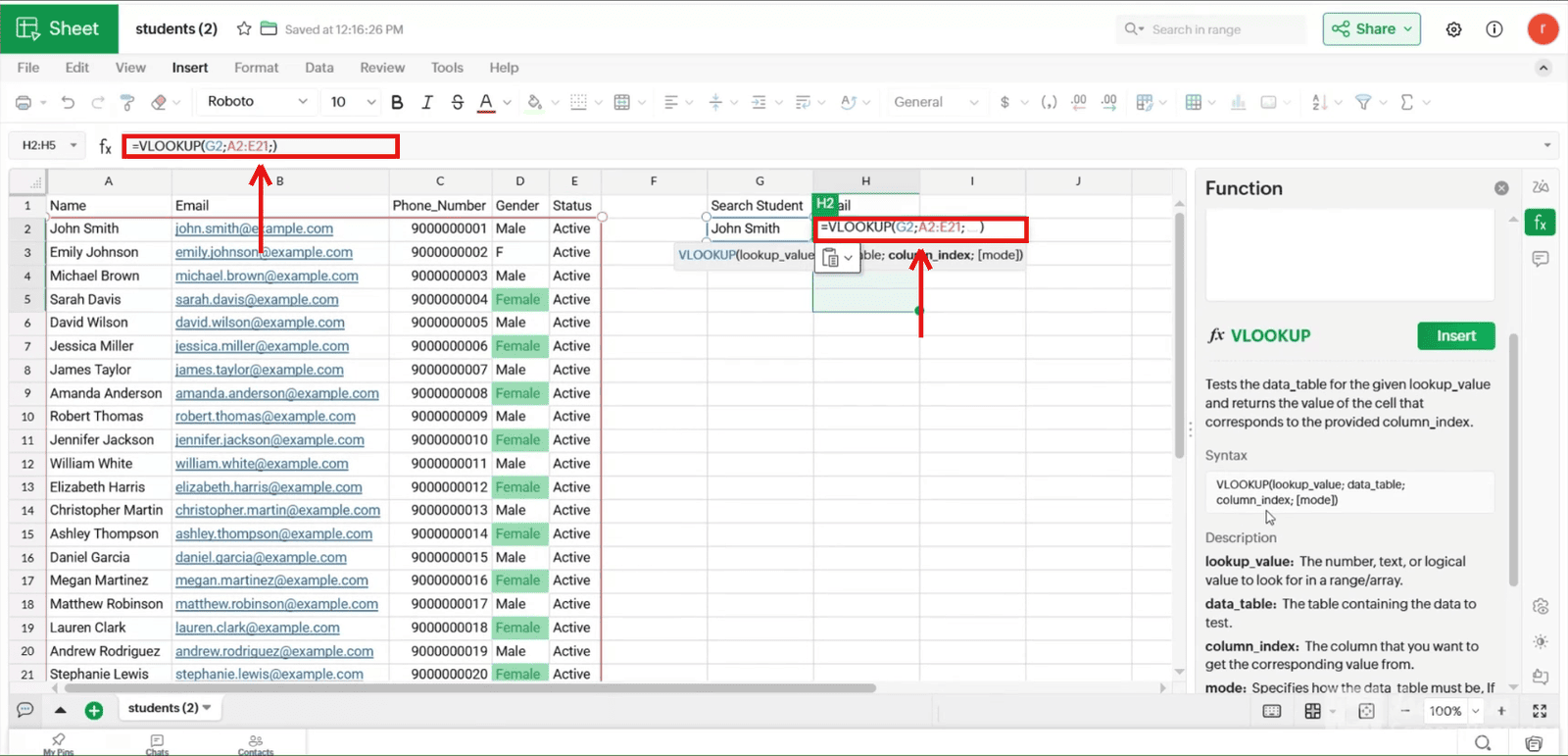
6. Enter the column index
6.1 Type the number of the column that holds the value you want returned. Email is the 2nd column, so type 2.
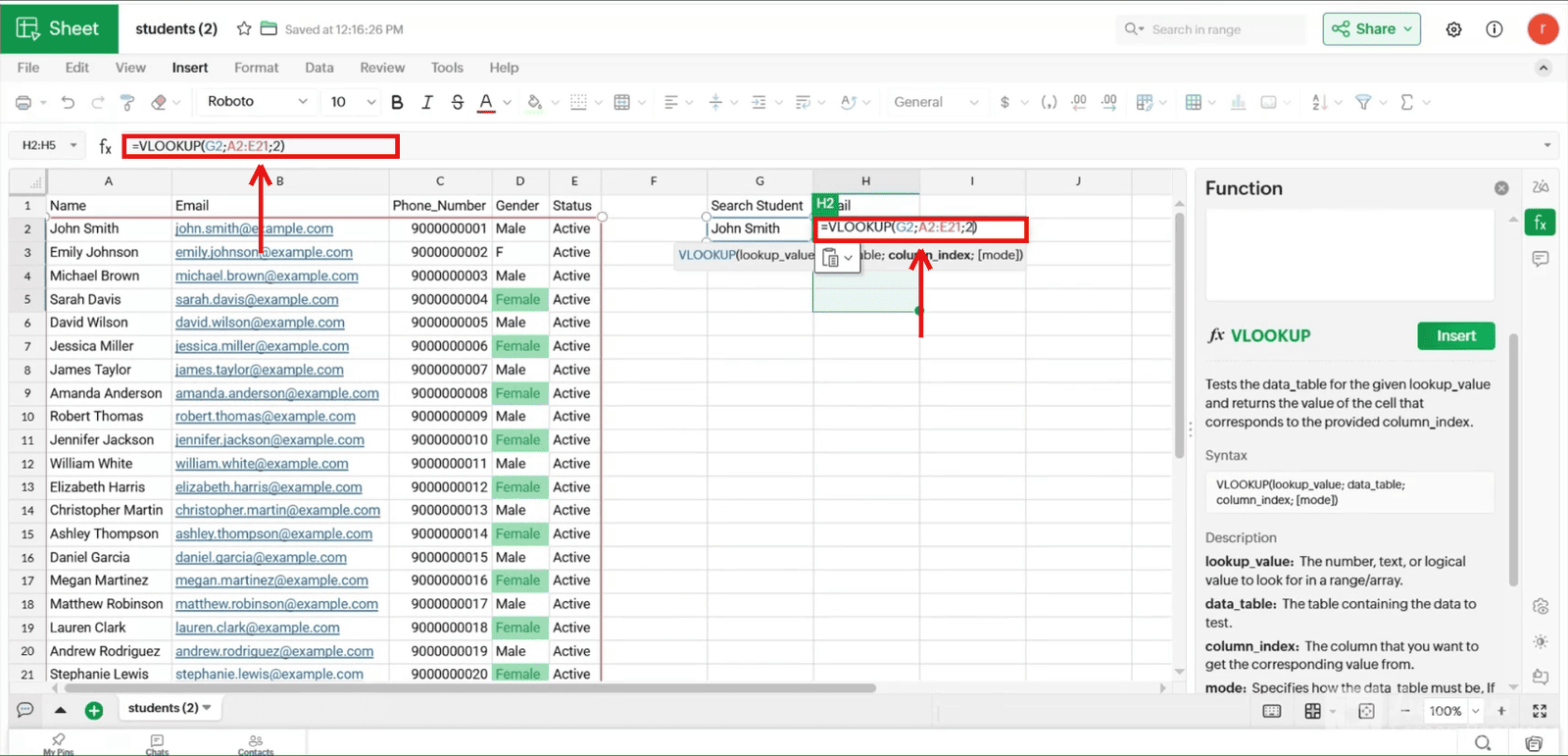
6.2 Type_semicolon
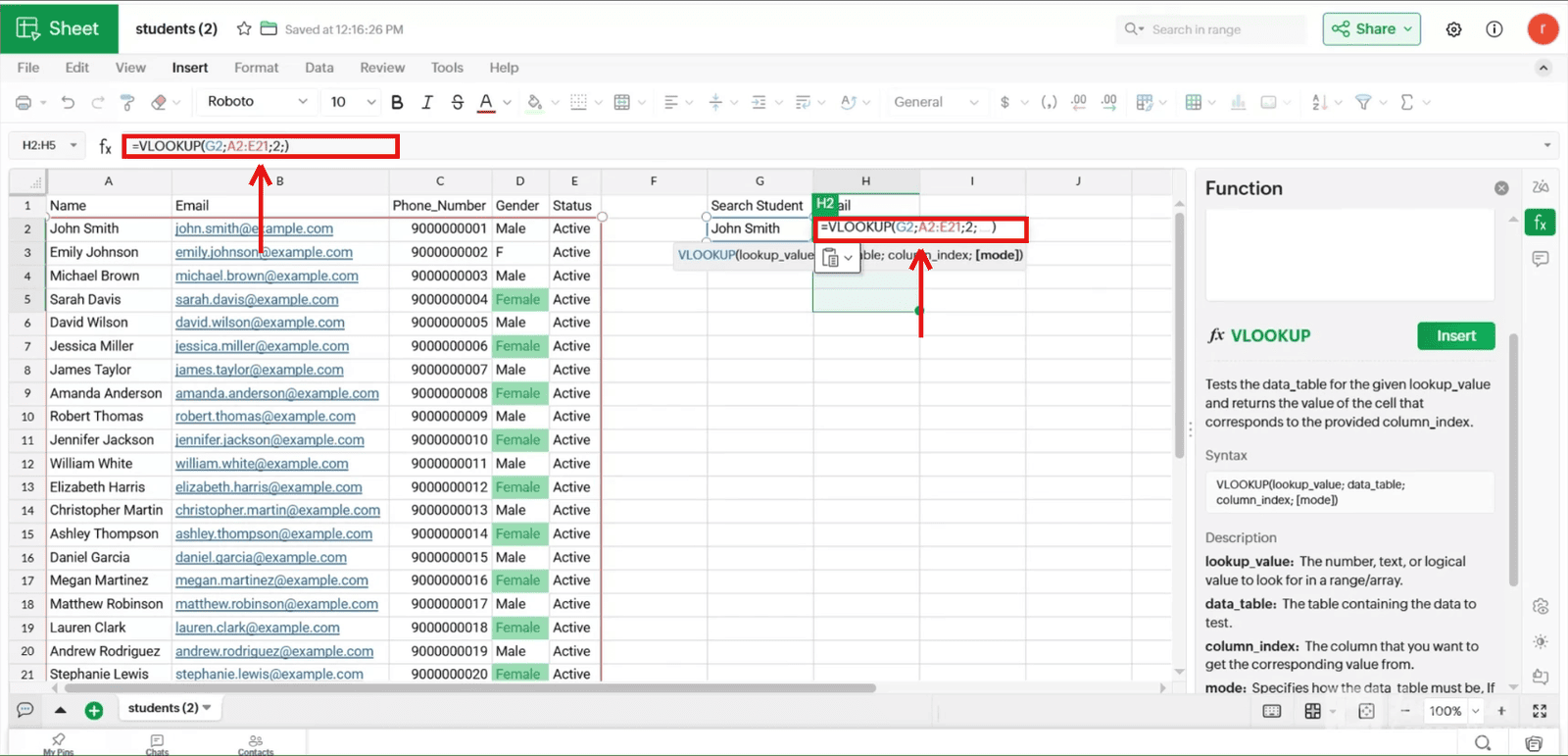
7. Set the mode to FALSE
7.1 Type or select FALSE for an exact match.
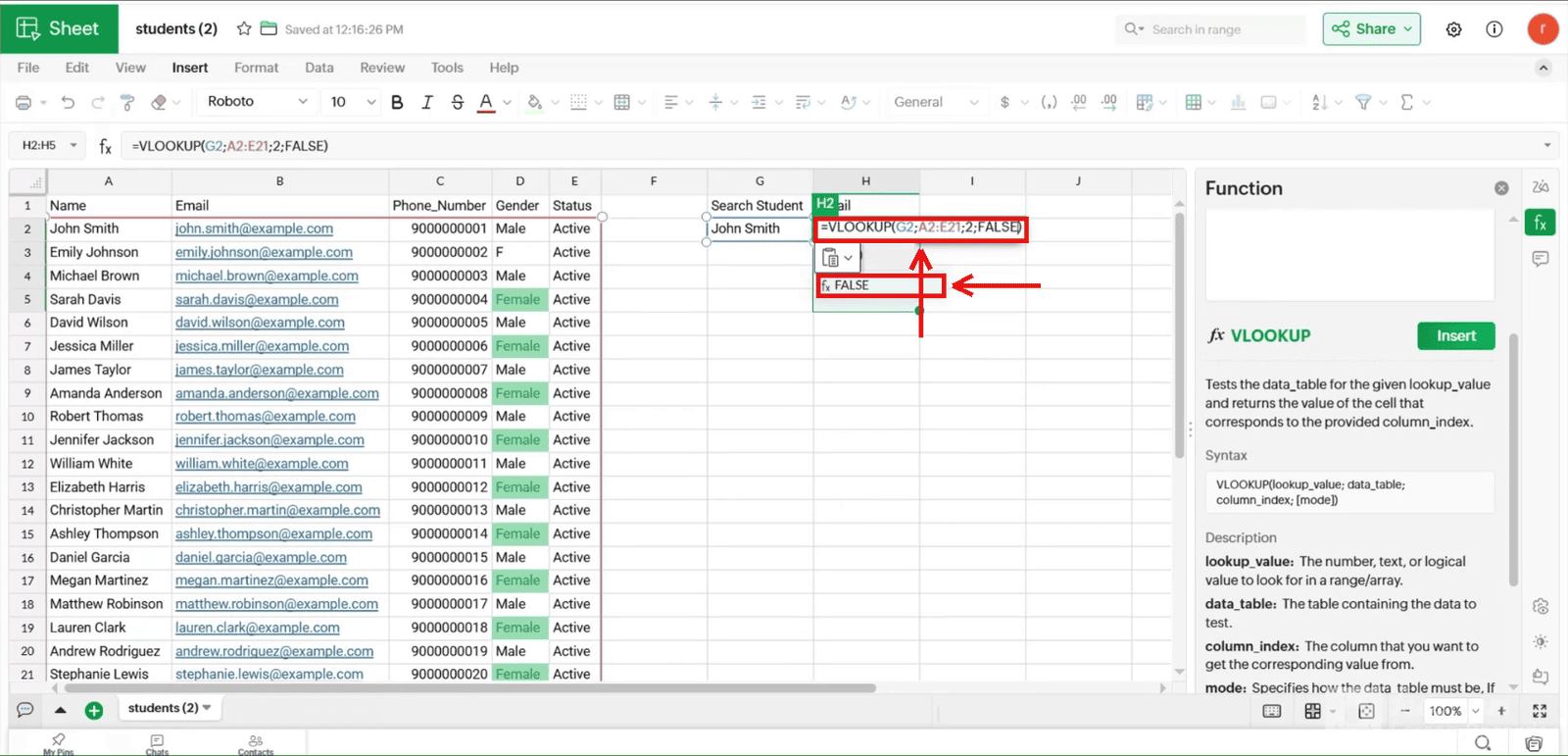
7.2 The formula should look like =VLOOKUP(G2;A2:E21;2;FALSE).
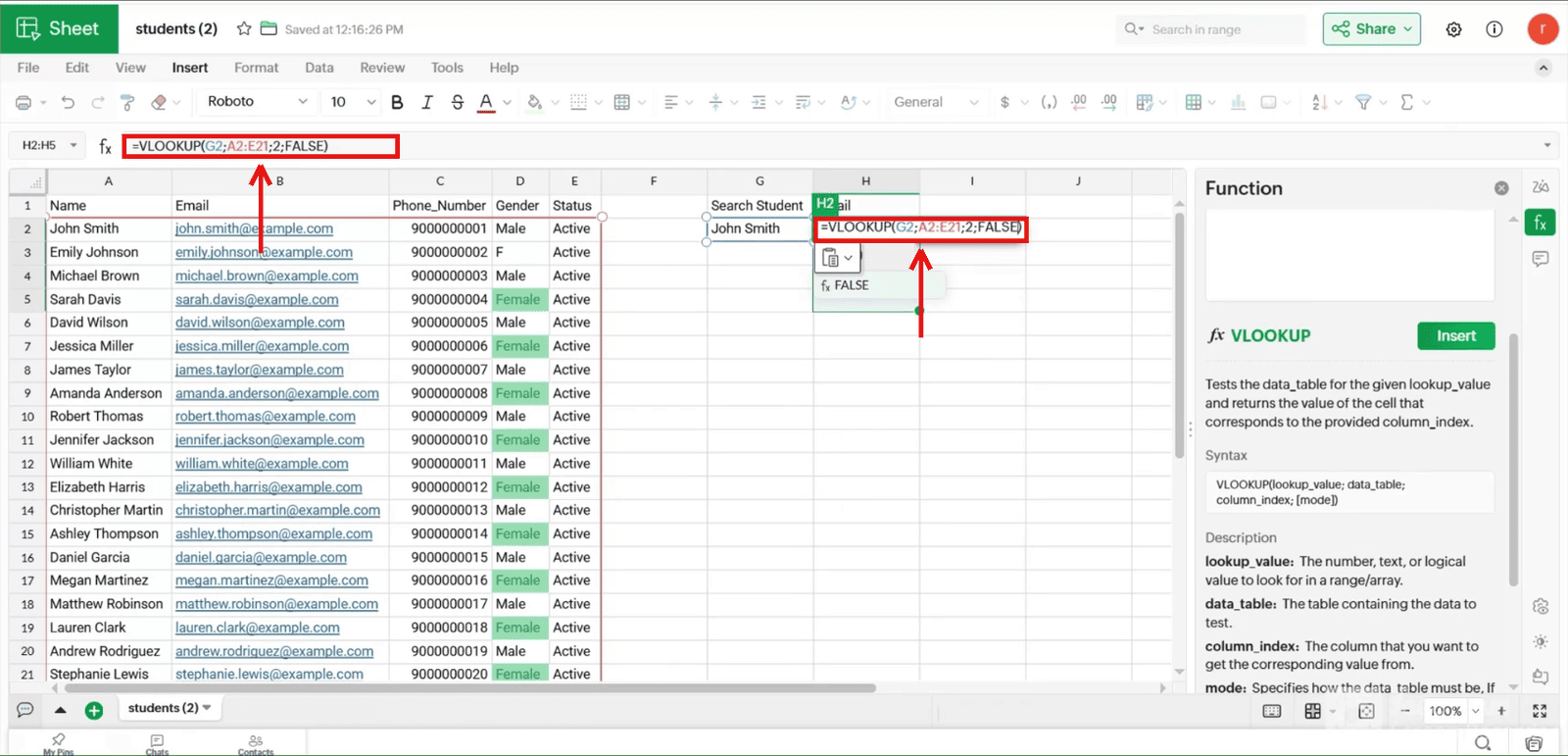
8. Press Enter
8.1 Press Enter.
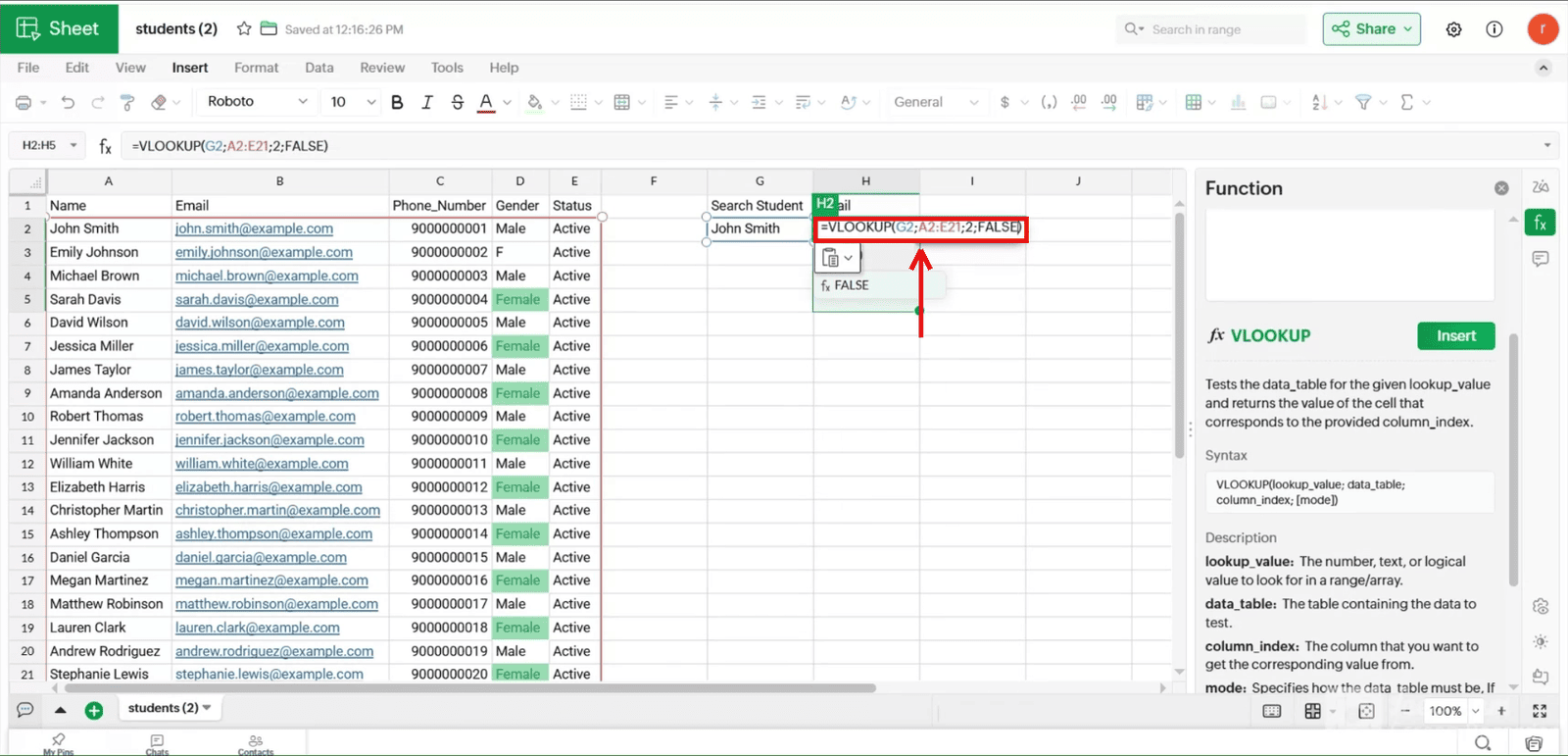
8.2 Zoho Sheet returns the matching value in the result cell (here, the email address).